Draw your reserve on the map
Draw your boundary, blocks, fences, roads and water points once. Every team member sees the same reserve map, with distances and areas worked out for you.
- 1
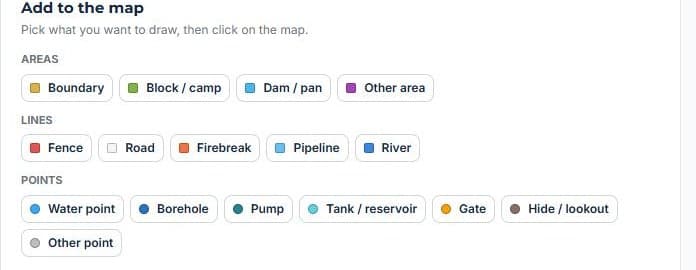
Pick what you want to draw
Areas, lines or points: boundary, blocks, fences, roads, water points and more. Choose a kind, then click on the map.
- 2
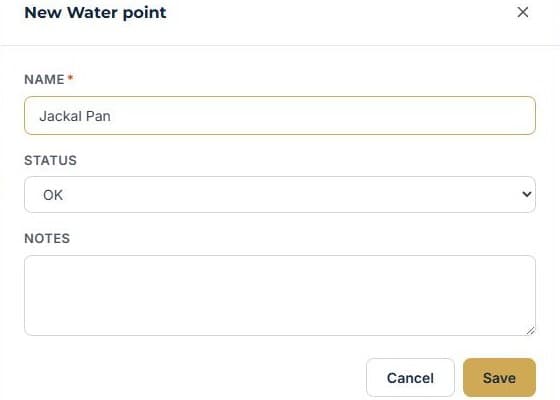
Name it and save
Give it a name, set a status and add any notes. Click the map again to place it.
- 3
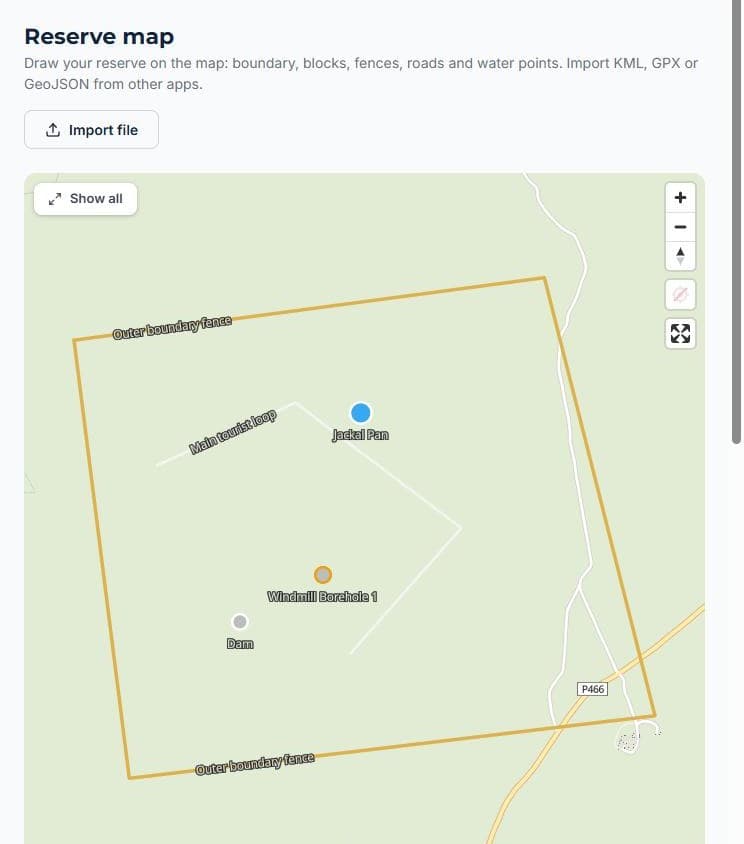
It is on your map for everyone
Every team member sees the same reserve map, with distances and areas worked out for you.
More how-to guides
How to add a staff memberGive a teammate a loginTrack staff certificationsHow to add a vehicleHow to add a roomHow to create a bookingTake bookings on your own websiteTurn an enquiry into a bookingInvoice a booking and track paymentKeep a firearm registerLog vehicle maintenanceNever miss a renewalSend a quote and convert itRoster shifts and approve leaveTake deposits online with PayFastSet up your tours and ratesRun your rooms day to dayGet found on ZAtours and Route22Never leave without the binocularsBill regular clients on autopilotKnow what is happening without logging inKnow what is on every vehicleYour rules, in one handbookSee what your team really costsKeep your operators and suppliers in one placeKnow your profit on every deliveryStop double bookings with Airbnb and Booking.comSet up your reserve teamLog every sighting from the field
See it running your business
Start free — no credit card required.