Capture supplier invoices and book stock in
Every delivery comes with an invoice, and that invoice is the truth about what your stock cost. Type it into OpTill once: stock items go into the stores at what you really paid, other lines like cleaning products become expenses, price changes are flagged, and your menu costs move with the prices.
- 1
Capture the invoice
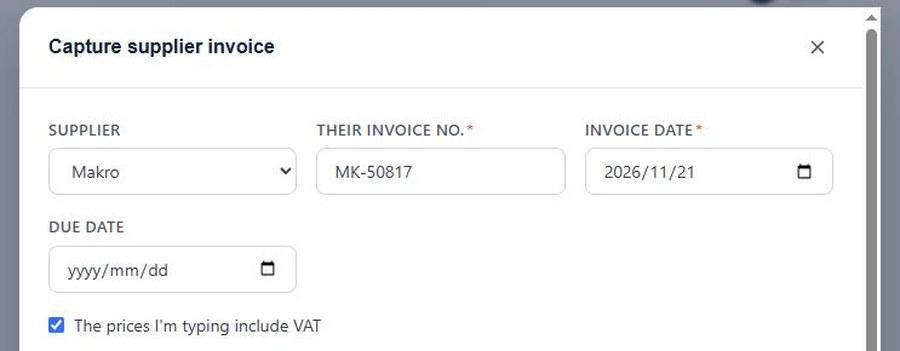
Pick the supplier, type their invoice number and date, and say whether your prices include VAT.
- 2
Stock and expenses on one invoice
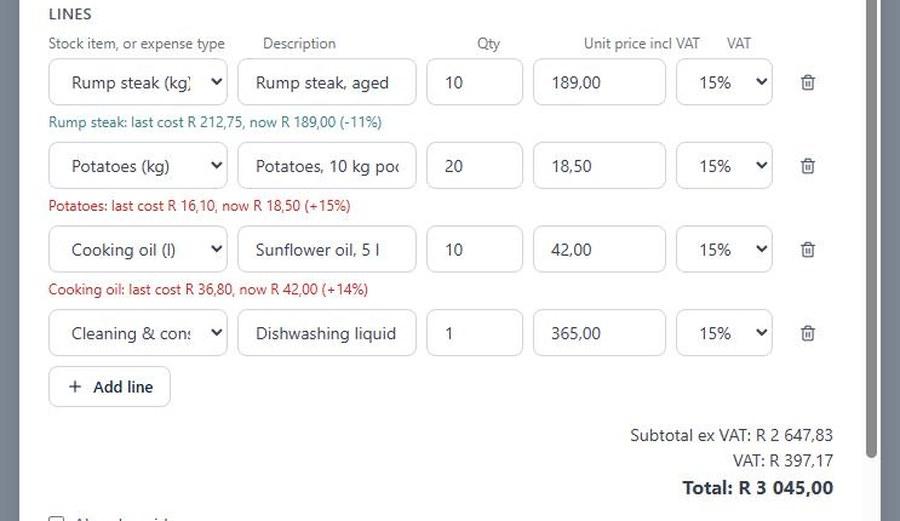
Rump and potatoes go into stores. The dishwashing liquid becomes an expense. OpTill flags every price that moved.
- 3
Save: stock is received
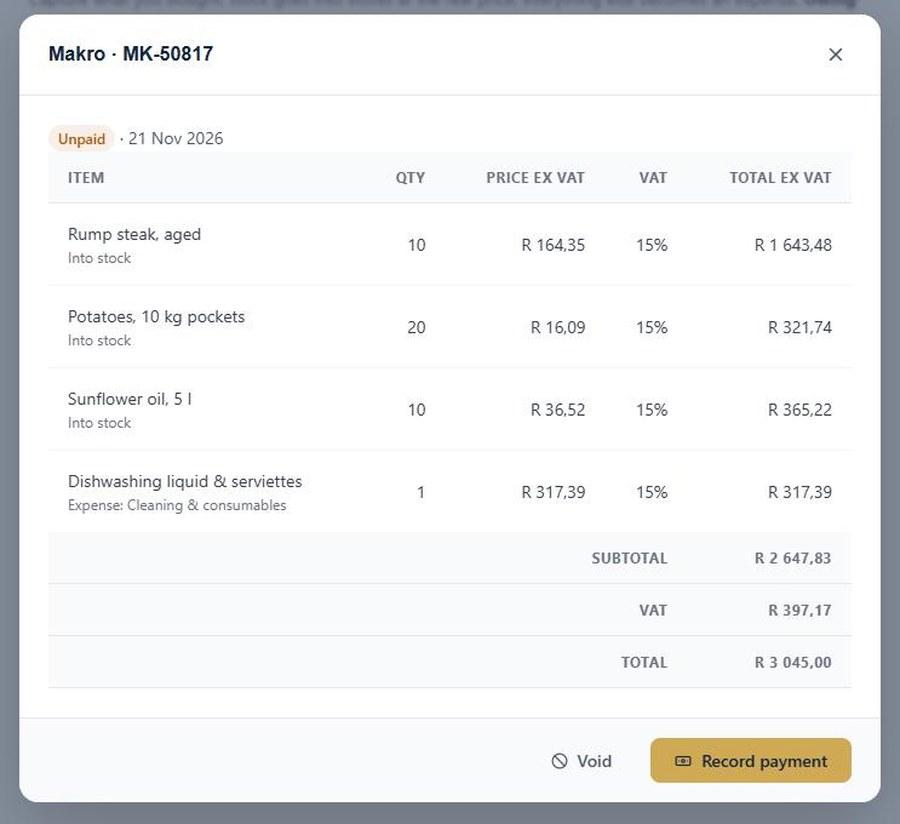
One save books the stock in at its real cost and adds the invoice to what you owe the supplier.
- 4
Record the payment
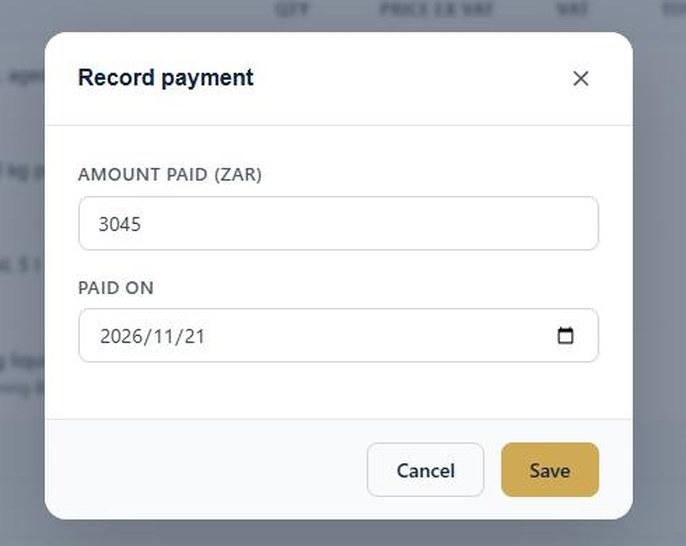
Pay now or later. The list keeps track of what you still owe each supplier.
- 5
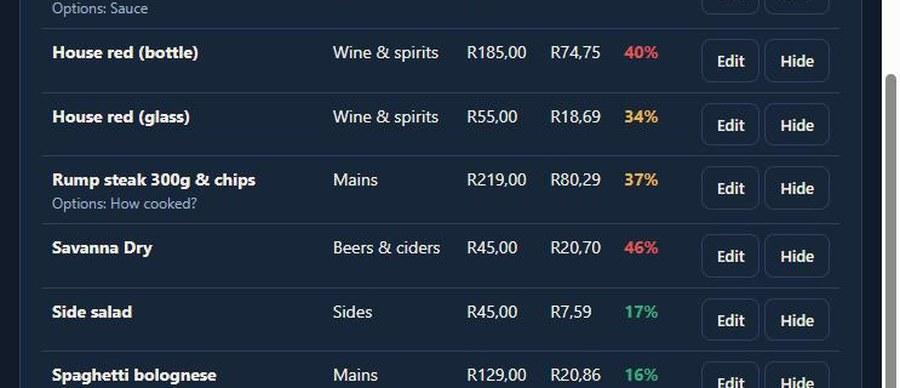
Plate costs follow the price
New rump price, new plate cost. Your menu shows the food-cost % for every dish straight away.
Run your restaurant on OpTill
Restaurant POS with floor plans, split bills, recipe costing and month-end profit. 30 days free, no credit card.