Update OpTill safely
Updates should never stop a busy Friday night. OpTill downloads new versions in the background and shows everyone what is new, but only the sysadmin can install, and only when no shift is open. The data is backed up first, and if anything fails the box puts the old version back by itself.
- 1
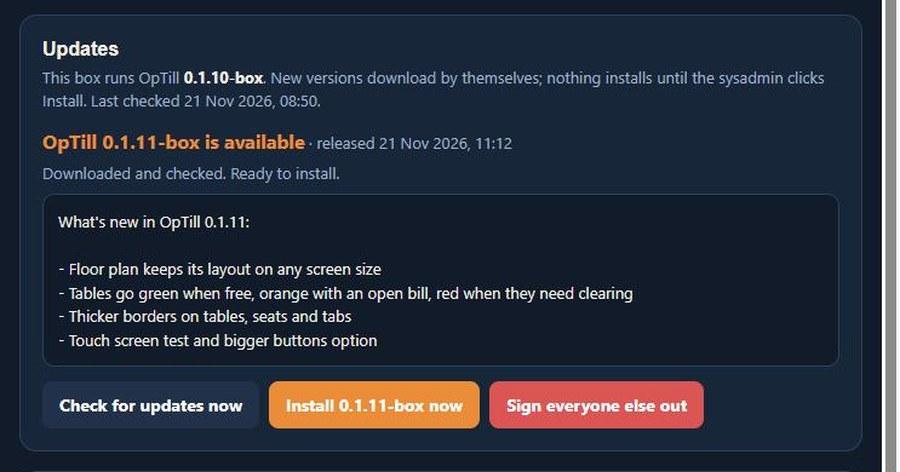
Updates download by themselves
Everyone sees what's new. Nothing installs until the sysadmin clicks Install.
- 2
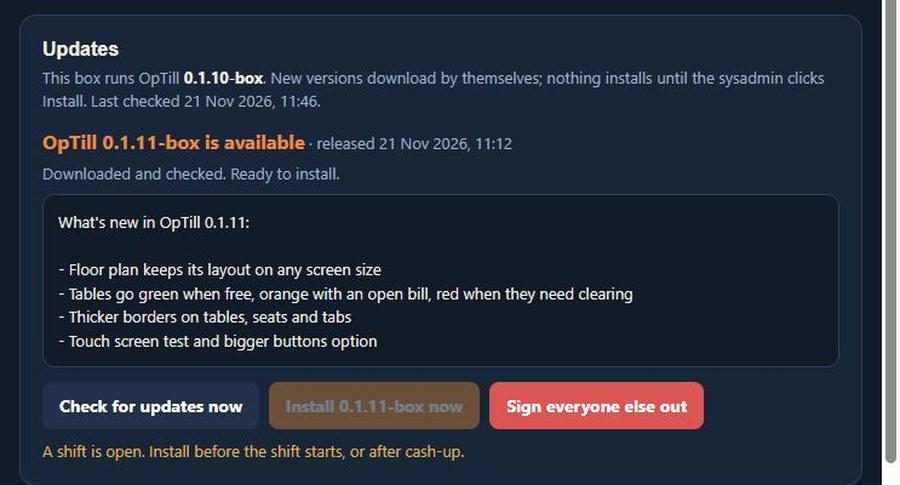
Never in the middle of service
Install stays locked while a shift is open. Do it before the shift starts or after cash-up.
- 3
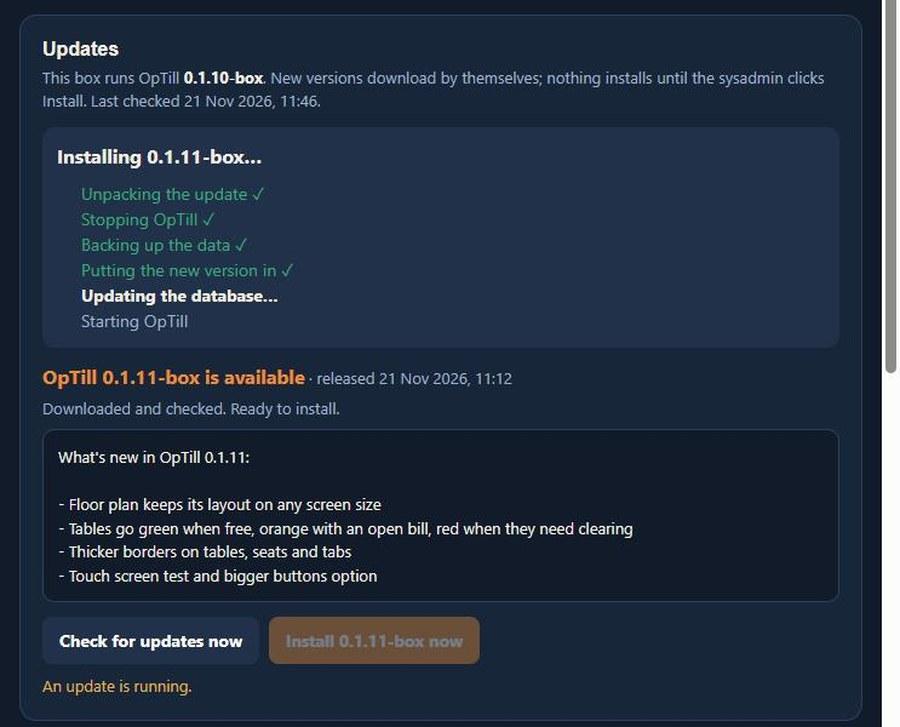
Backed up, then installed
Staff are signed out, the data is backed up, and the new version goes in. Takes 2 to 5 minutes.
- 4
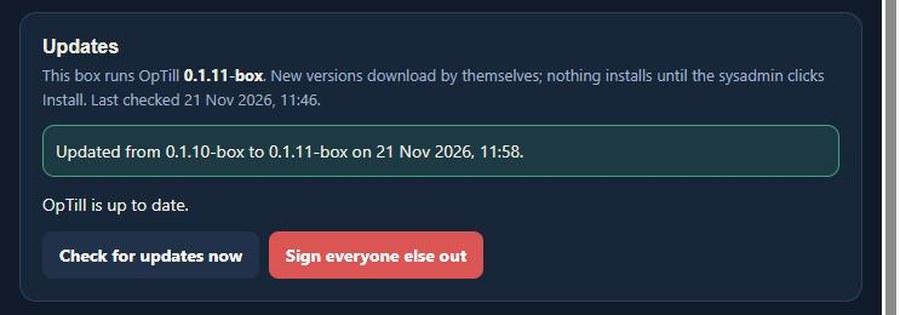
Safe if anything goes wrong
If a step fails, the box puts the old version back by itself. Tills switch over when the shift is closed.
More guides: OpTill
Run your restaurant on OpTill
Restaurant POS with floor plans, split bills, recipe costing and month-end profit. 30 days free, no credit card.