Set up a touch-screen till
A till that gets tapped hundreds of times a night needs big targets and a screen that registers taps where fingers land. Each OpTill screen has its own touch settings for size and buttons, plus a quick five-tap test that tells you how accurate the screen is.
- 1
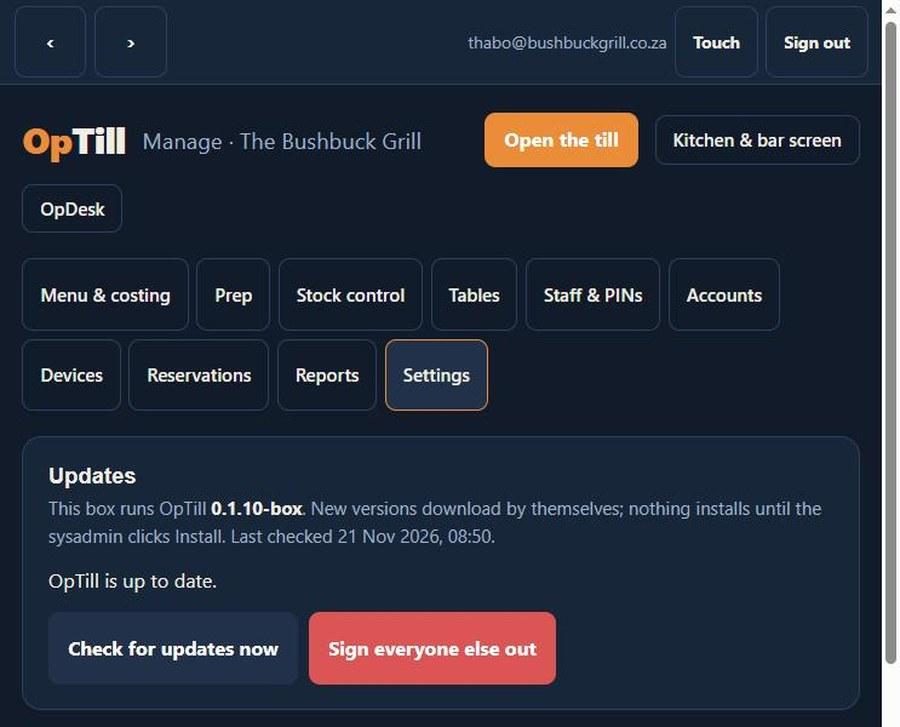
Open Settings on that screen
Each till, tablet and kitchen screen keeps its own setting, so set each one where it stands.
- 2
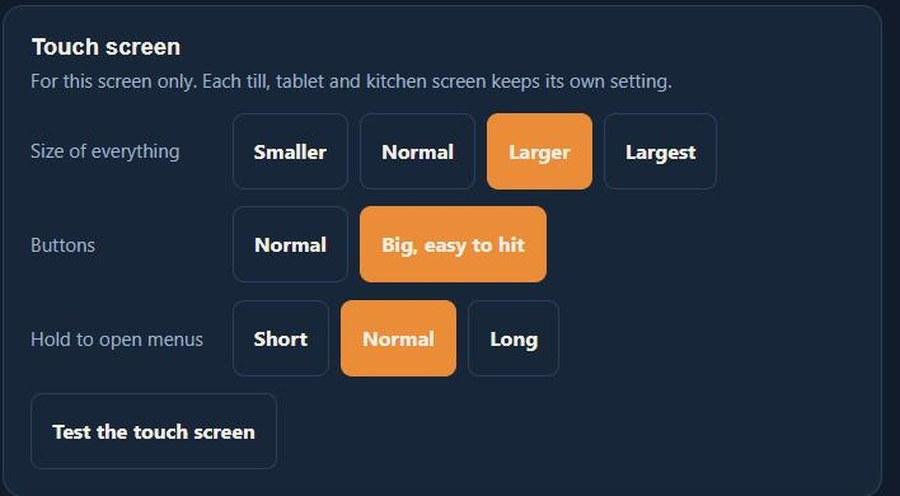
Make everything bigger
Larger text and big, easy-to-hit buttons for a till that gets used all night.
- 3
Test the touch screen
Tap the centre of five crosses. OpTill measures where each tap really lands.

- 4
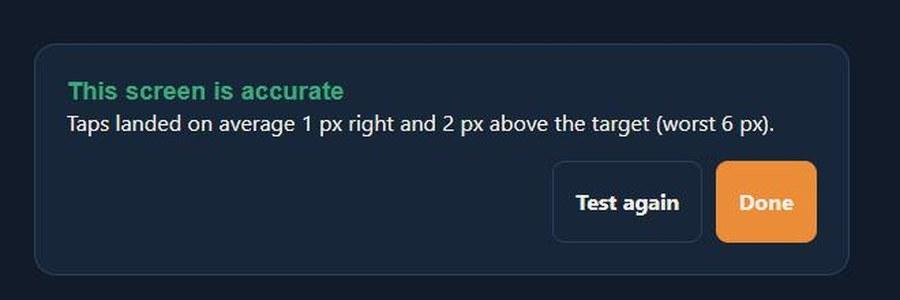
Know it's accurate
It tells you how far off the taps were. If they miss, calibrate the screen before service.
Run your restaurant on OpTill
Restaurant POS with floor plans, split bills, recipe costing and month-end profit. 30 days free, no credit card.